News and articles
Blog
Drop news, retailer notes and botting articles from the NikeShoeBot team.
1,854 posts · page 3 of 186
-
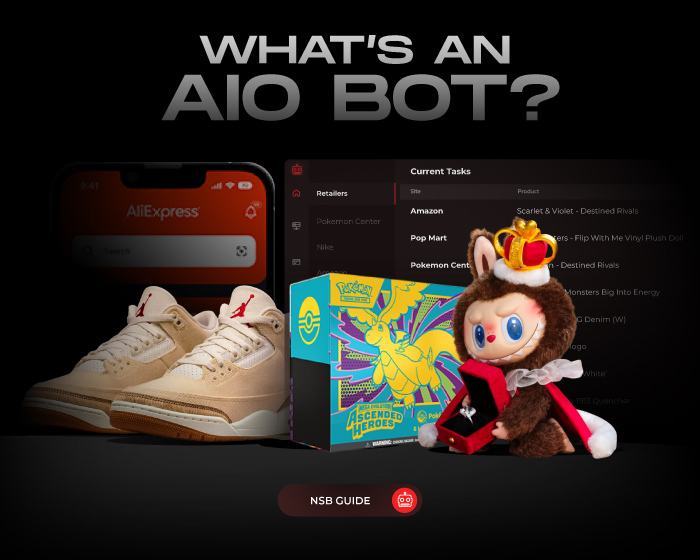
What’s an AIO Bot? Everything You Need to Know About It!
If you’re reading this, then you’re probably looking for a way to up your sneaker game. Whether you’re collecting, flexing, or flipping, you know…
-

What Was Wrath Bot? 2018 to 2025 Shutdown Review
Review how Wrath Bot operated from 2018 until its April 2025 shutdown, why keys traded at $6,900 vs $350 retail, and which active AIO…
-
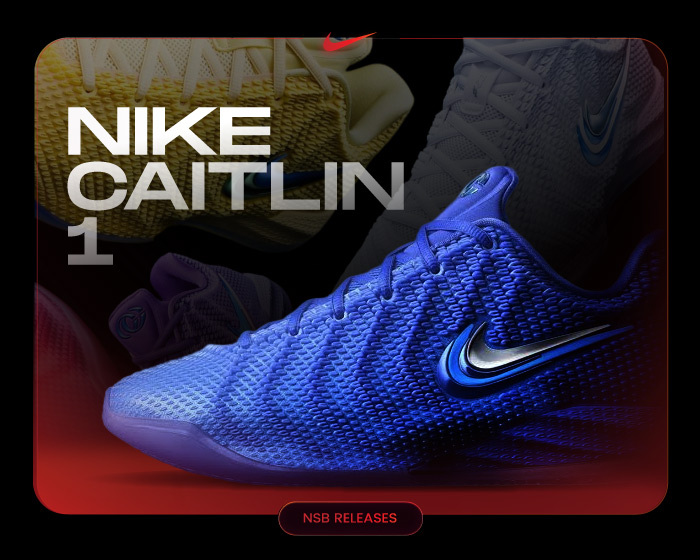
Nike Caitlin 1 Is Ready to Make Signature Sneaker History!
Caitlin Clark’s rise from college basketball sensation to professional superstar has been one of the biggest stories in sports. Now, Nike is cementing her…
-
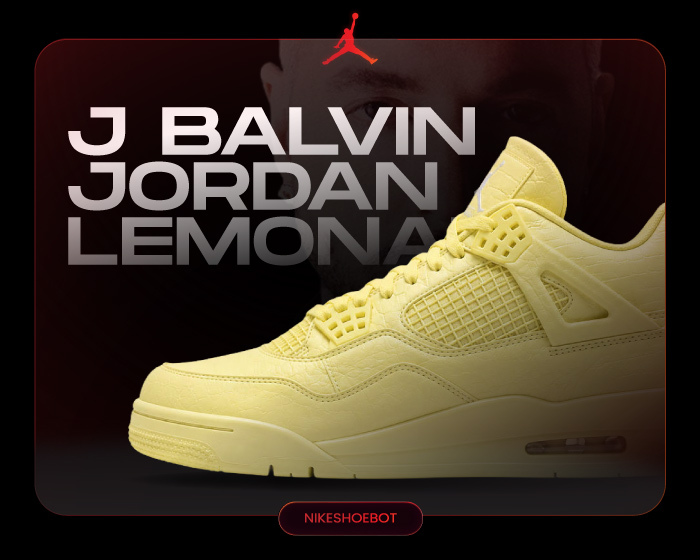
J Balvin Jordan 4 Lemonade Lit Up the ‘26 World Cup Ceremony
Few artists have built a sneaker legacy quite like J Balvin. Since joining forces with Jordan Brand, the Colombian superstar has delivered some of…
-
Amazon Bot Secrets Q&A: What Nobody Tells You!
When we talk about Amazon drops, we’re talking about quick releases that could no longer be there in minutes. And that’s exactly when you…
-
Why Do You Need a Nike Bot for SNKRS Drops and Flow?
Discover why do you need a Nike bot for LEO and DAN SNKRS drops, how Akamai filters entries, and how uSNKRS, TSB, and Valor…
-

Pokemon Card Bot Setup Guide: Prepare for Pokemon Center Drops
Set up a Pokemon card bot for Pokemon Center drops with verified regional billing profiles, tested proxies, direct product URLs, and stage troubleshooting.
-
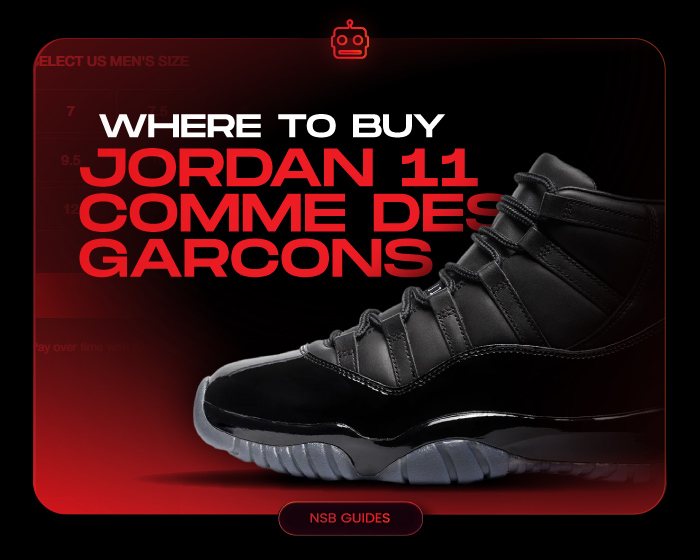
Where to Buy the Comme Des Garçons Jordan 11 Colorways
If you’re a sneakerhead who knows their Air Jordan lore, you know the significance of the upcoming Comme Des Garçons Jordan 11 collaboration. If…
-

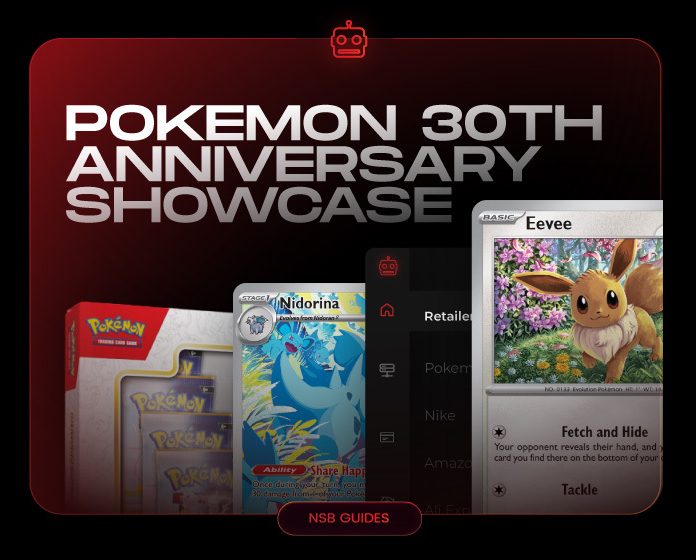
Pokémon TCG 30th Anniversary – All the Packs Coming Our Way!
Discover everything about the Pokémon TCG 30th Anniversary, including 30th Celebration release dates, products, Pikachu cards, and how to cop on drop day!
-
Sneaker Twitter Guide: 25 Best X Accounts for Drops (2026)
Use this Sneaker Twitter guide to follow the 25 best X accounts for restock alerts, release calendars, brand drops, and culture news in 2026.