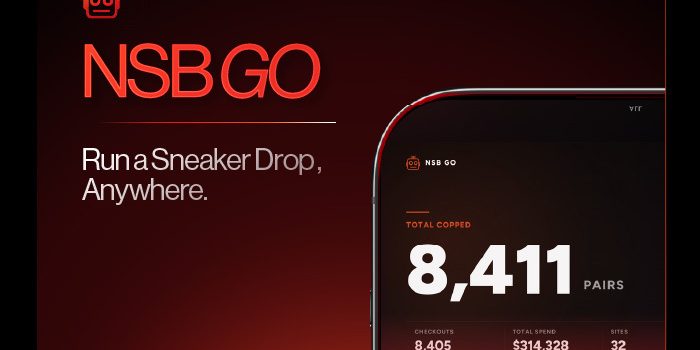
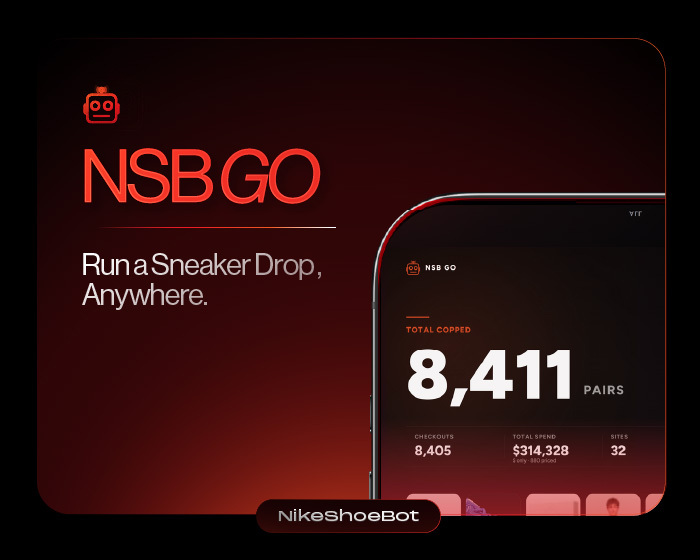
NSB Go is the mobile companion to NikeShoeBot, and it lets you monitor and manage the bot from an iPhone or Android phone during a sneaker drop. Your computer stays on, runs NikeShoeBot, and does the buying. The phone shows task status, lets you edit tasks, sends alerts, and shows your results. If your phone loses signal, your tasks keep running.
- 2 platforms are supported: iPhone and Android.
- 5 task settings can be changed from the phone: keyword, size, billing profile, proxy list, and delay.
- 4 time filters sit in the Cops tab: today, this week, this month, and all time.
- 2 buttons control everything at once: Start All and Stop All.
How Does NSB Go Fit Into a Sneaker Drop?
NSB Go is a remote control for the NikeShoeBot installation on your computer, and it has a use at every stage of a drop. The computer keeps running and handling the buying, while the phone lets you monitor and manage what is happening remotely.
It suits the moments when a release is coming up and you have to leave your desk. You know, the usual stuff like heading out for the day, working, grabbing food with friends, or just not wanting to sit at your PC for the whole release. The table walks through a typical drop.
| Stage | What you do | NSB Go feature |
|---|---|---|
| The night before | Check your setup and review tasks, billing profiles, proxies, accounts, automations, and IMAP accounts | Task and settings screens |
| The morning of the drop | See what every task is doing | Deck |
| Leaving the house | Check tasks, make changes, receive notifications | Tasks tab, alerts |
| A few minutes before | Review statuses, edit a task, Start All or Stop All | Deck, Tasks tab |
| The release | Get alerts for tasks that need attention and for checkouts | Settings tab |
| Afterwards | Filter your checkouts, create a share image | Cops tab |
What Can You Do the Night Before a Drop?
The night before is when you can finish setup from your phone, so you do not have to sit at your PC. Say a release is coming up the next morning and NikeShoeBot is already configured on your computer. You can open the app and make final changes before you go to sleep.
Check that your tasks are configured and ready, then review individual tasks and the settings they depend on. That covers your billing profiles, proxies, accounts, automations, IMAP accounts, and other relevant settings.
Once everything looks right, you can go about your evening. If you need the basics for any of those items, our guides here cover them all.
What Does the Deck Show on the Morning of the Drop?
The Deck is the overview screen in NSB Go, and it shows the current status of your tasks and what they are doing. On drop morning, you can open it before you sit down at your computer.
You might see tasks that are:
- Running
- Sleeping
- Waiting in queue
- Sitting in cart
- Completing checkouts
That gives you an immediate snapshot of your setup without opening the desktop application yourself. If something needs attention, you can deal with it from your phone.
Can You Leave the House While the Bot Runs?
Yes, because the buying happens on your computer, not on your phone. Your computer stays at home, powered on and running NikeShoeBot. You leave, and your tasks do not stop just because you are no longer next to the machine.
This is one of the main use cases for the app. Your phone becomes your connection to the installation at home. You can check your tasks while you are away, make changes when necessary, and receive notifications when something important happens.
| Job | Which device |
|---|---|
| Runs the tasks and does the buying | Computer |
| Must be powered on with the bot open | Computer |
| Keeps tasks going if the phone loses signal | Computer |
| Monitors tasks and edits settings remotely | Phone |
| Receives alerts | Phone |
| Shows your checkout results | Phone (Cops tab) |
Can More Than One Phone Connect to the Same NikeShoeBot?
Yes. Multiple phones can connect to the same computer running NikeShoeBot. That lets you reach it from different devices while the installation stays on one computer. It also means someone else can manage the drop while you are busy.
How Do You Change a Task Right Before the Release?
You change a task by opening the Tasks tab, selecting the task and editing its settings. A few minutes before the release, review the Deck and the task statuses first. If a task needs a change, you do not need to go home or sit in front of the PC.
Five settings can be edited from the phone:
- Keyword
- Size
- Billing profile
- Proxy list
- Delay
After the change, start, stop or restart the task as needed. To control everything at once, tap Start All to start every task or Stop All to stop them. It is a simple way to keep immediate control when you are away from your desk.
How Do Alerts Work When the Drop Starts?
Alerts in NSB Go come from the notifications you choose in the Settings tab. When the release begins, you do not need to stare at your computer screen. Your phone buzzes instead.
Two situations trigger an alert. If a task needs your attention, you know about it. If you get a checkout, you know about that too.
That means you do not have to keep opening NikeShoeBot or checking your PC during a busy release. The phone tells you when something important happens, and you can act on it from the same screen.
What Happens if Your Phone Loses Signal?
Nothing happens to your tasks, because your computer runs them. Your computer runs NikeShoeBot, and your phone controls and monitors it. If the phone temporarily loses its connection, the tasks on the computer continue.
When the phone reconnects, NSB Go catches up on the information it missed. The phone does not need a constant connection for your tasks to keep operating, which is an important distinction to keep in mind during a release.
How Do You Review Your Cops After the Drop?
The Cops tab lists your checkouts, and you can filter them by 4 periods: today, this week, this month, or all time. That lets you see what happened from wherever you are, instead of waiting until you are back at your computer.
If the release went well, use Make a Share Image to create a shareable image for a selected time period. The image does not include your private data, so you can post a result without exposing anything sensitive.
Does NSB Go Replace NikeShoeBot?
No. NSB Go is not a replacement for the bot. Your computer still has to be powered on with NikeShoeBot running, because that is where the actual buying happens.
Think of the app as a mobile control layer on top of your existing setup. Your PC runs the bot and your phone gives you access to it. Together they let you leave the house, check your tasks, receive alerts, make changes, monitor your checkouts and review your results, all from an iPhone or Android device.
Our NikeShoeBot setup guide covers getting the computer side ready. Your bot stays at home, and your control goes with you. And join our free community Discord to stay connected with our team and other users.