CPU, RAM & Task Count: How to Estimate What Your Device Can Handle
How many bot tasks your PC can run depends on both RAM and CPU, and the reliable way to find the number is to measure it. Check your baseline usage in Task Manager, run a few tasks, note how much memory each one adds, then divide your spare RAM by that figure and trim the result to leave CPU headroom. This guide gives the formula, a worked example, and a quick-reference table for anyone running NikeShoeBot.
Running multiple automation tasks at once puts real strain on a computer, whether you run a handful or dozens across several browser instances. We cover how your hardware affects performance, how to estimate capacity, and how to settle on a count that holds up.
What Hardware Runs Your Bot Tasks?
Two components do most of the work: the CPU and the RAM. Knowing which does what tells you where to look when a setup starts to struggle.
What Does the CPU Do?
The CPU executes instructions and processes operations. With automation software, it handles browser activity, scripts, background processes and other computation. A more capable CPU generally lets a machine handle more simultaneous activity, though core count, per-core performance and the workload itself all shape how much.
What Does RAM Do?
RAM determines how much information your computer keeps readily available while applications run. Browsers, tabs, bot software and other programs all consume it, so usage generally rises with every active task.
What Happens When Your PC Runs Out of RAM?
Windows starts leaning on its storage drive. Microsoft describes the page file as a physical extension of RAM, and its Q&A notes that accessing data from it degrades system performance considerably, so expect noticeable slowdowns.
Why Do Both CPU and RAM Matter?
They solve different problems. You might have a powerful processor but too little memory to keep several browser instances running comfortably. Or you might have plenty of RAM and a processor that cannot keep up with simultaneous operations. Your capacity depends on both, and on a few non-hardware limits such as bandwidth and proxies, which our guide to residential, ISP and datacenter proxies covers.
How Much Memory and CPU Does Each Task Use?
There is no single figure, because tasks do not all cost the same. Resource use depends on the website being accessed, browser configuration, extensions, automation activity and the number of active browser instances.
- Browser instances: Each one needs memory and processing power, and running several at once can raise consumption considerably. According to webscraping.ai, a single headless Chrome instance takes 100 to 500 MB of RAM, and a visible browser can take more.
- Browser tabs: Each tab adds memory, particularly on complex sites full of scripts, images and dynamic content.
- Automation software: The bot itself needs resources to manage tasks, execute instructions and talk to websites.
- Extensions: They can add background processes and memory usage.
- Background applications: Discord, other automation tools, streaming apps and everyday programs all compete for the same resources. A local captcha solver does too, and our guide to what a CAPTCHA is explains why challenges show up.
An idle task and an actively processing task can differ a lot as well, which is why counting tasks alone does not tell you how much hardware you need.
How Do You Estimate Your Machine’s Capacity?
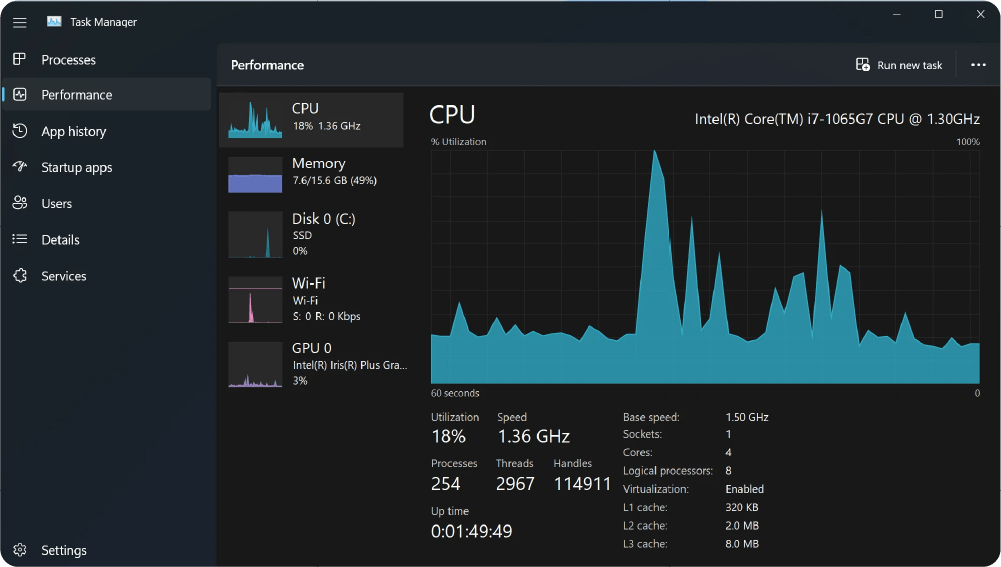
Skip generic recommendations and measure instead. The method below uses Windows Task Manager and four steps.
Step 1: Check Your Hardware Specifications
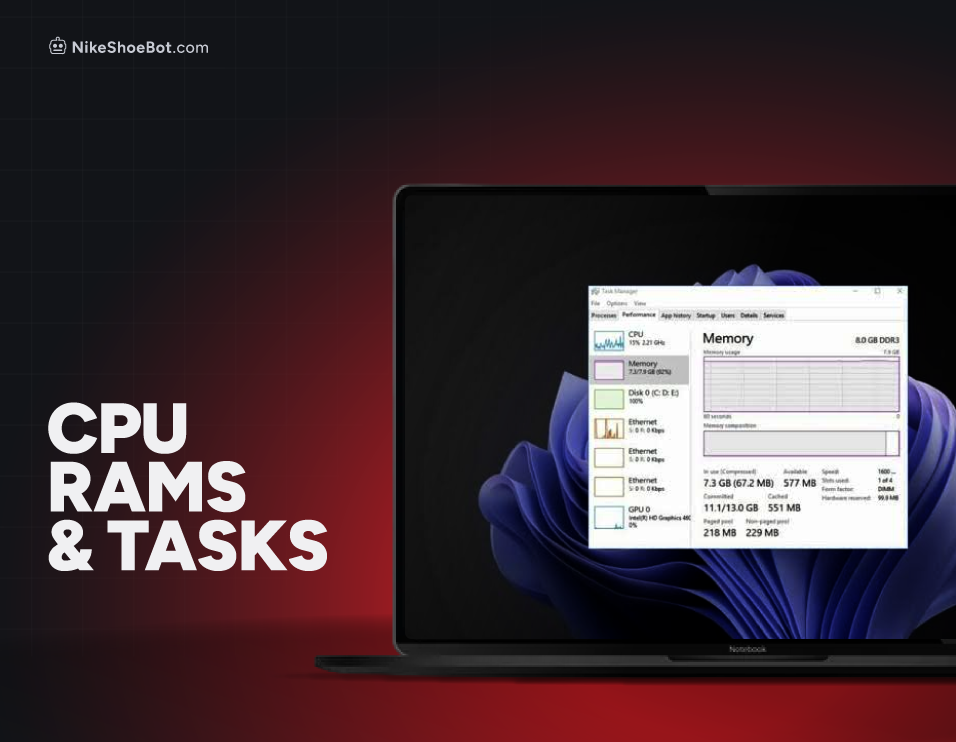
Open Task Manager with Ctrl + Shift + Esc and go to the Performance tab. Note four things: your CPU model and core count, your total installed RAM, your current CPU utilization and your current memory utilization.
Step 2: Establish Your Baseline Usage
Before opening your bot, check how much CPU and RAM the machine already uses. Windows, background apps and antivirus all consume resources even when no tasks run. Say a 16 GB machine already uses about 4 GB. That leaves roughly 12 GB, before you set aside a buffer.
Step 3: Measure Resource Consumption
Start the bot with a small number of tasks, let them run normally for a few minutes, then compare Task Manager against your baseline. If memory climbs from 4 GB to 6 GB after five tasks, they added about 2 GB, or roughly 400 MB each. That is an estimate only, since usage swings with what the tasks are doing.
Step 4: Calculate an Approximate Task Count
Use this formula: Estimated Tasks = (Total RAM – Existing Usage – Reserved Memory) / Average RAM Per Task. With 16 GB total, 4 GB existing usage, a 3 GB reserved buffer and 400 MB per task, the calculation is (16 – 4 – 3) / 0.4 = 22.5, so about 22 additional tasks on memory alone.
That is a starting point, not guaranteed capacity, because the CPU can become the limit long before memory does. The table below is our own arithmetic with the same 4 GB baseline and 3 GB buffer, treating 1 GB as 1,000 MB.
Why Shouldn’t You Ignore CPU Usage?
RAM is not the only resource to watch, because as your task count climbs the processor can become the bottleneck. Keep Task Manager open and watch CPU utilization while tasks run.
If the CPU sits near 100% for long stretches, the machine is struggling with its workload. Leave room for temporary spikes: a processor at 70% has 30 points of headroom, while one at 98% has 2, which is 15 times less. Core count does not guarantee capacity either, since two CPUs with the same cores can perform very differently depending on architecture, clock speed and per-core performance.
This table helps separate a CPU problem from a RAM problem.
How Do You Find Your Optimal Task Count?
Your optimal count is the highest workload your machine sustains reliably, not the most tasks you can launch. Increase gradually instead of starting everything at once.
- Start with a small number of tasks and let them run normally.
- Monitor CPU and RAM usage through Task Manager.
- Increase your task count gradually.
- Watch how the system responds as the workload grows.
- Stop adding tasks once performance turns inconsistent or usage approaches your limits.
Account for the other programs you keep open as well. If you usually run Discord, several browser tabs and other applications beside the bot, your available resources will be lower than on an idle machine.
Rules of Thumb for Sizing Your Task Count
Sizing a setup does not have to be complicated. Understand your CPU and RAM limits, measure actual consumption, and raise the workload step by step.
- Monitor both CPU and RAM: Enough memory does not mean the processor can handle the load.
- Measure actual consumption: Do not assume every task uses the same amount of resources.
- Leave some headroom: Avoid running at maximum utilization all the time.
- Account for browser activity: Instances, tabs and extensions add up quickly.
- Prioritize stability: A smaller number of consistently running tasks beats a larger number that constantly struggles.
The best count ultimately depends on your hardware, software configuration and workload, so benchmark your setup, find its limits and adjust.