Sneaker Bot Checkout Failed? What to Check Before You Change Everything
CHECKOUT TROUBLESHOOTING
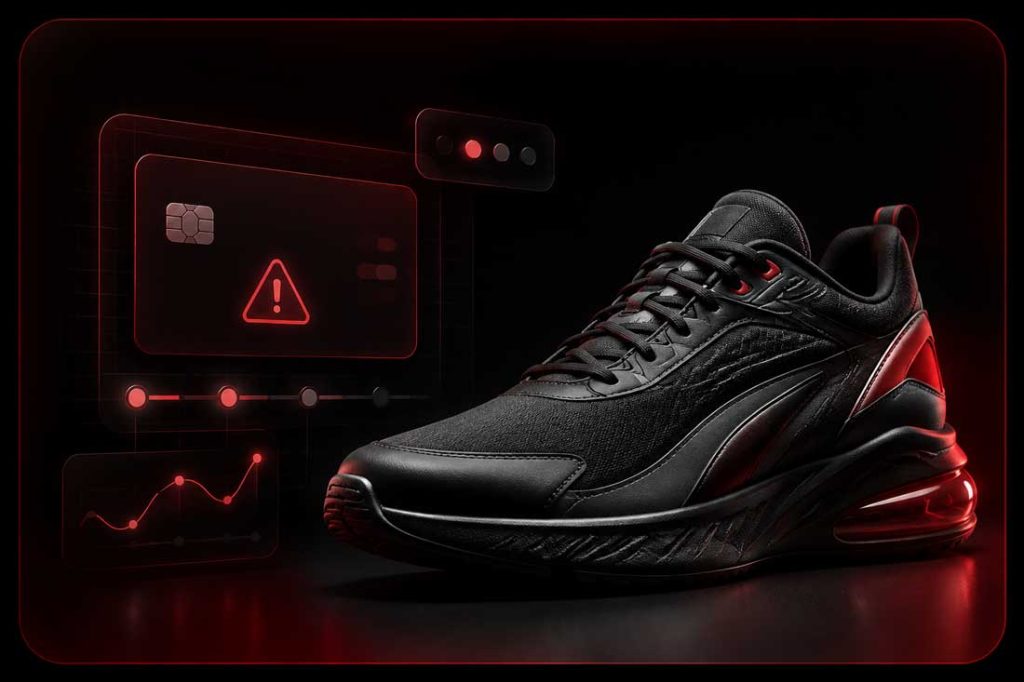
A sneaker bot checkout failure can happen even when the task looks like it made real progress. It may find the product, select a size, add to cart and move into checkout, then stop before the order is confirmed. That does not always mean the bot was configured badly. It means one part of the checkout path did not pass under the retailer’s current rules.
This guide explains what to check when a sneaker bot checkout failed, especially when the issue is broader than a simple payment decline. The goal is to identify the exact stage of the failure, review the matching setup area and avoid changing proxies, accounts, billing profiles and task settings all at once.
What “Checkout Failed” Usually Means in Sneaker Botting
“Checkout failed” is a broad message. It tells you the task did not reach a confirmed order, but it does not automatically explain whether the problem was the product, cart, account, shipping profile, billing profile, payment method, retailer limit or confirmation step.
That distinction matters. A task that fails before cart needs a different investigation from a task that fails after submitting payment. A task that gets a pending card hold but no order email needs a different review from a task that never reached the retailer’s checkout page.
Before making changes, compare the exact message with the broader sneaker bot task statuses troubleshooting guide. If the task never entered checkout, you may not have a checkout problem at all.
Find the Exact Stage Where Checkout Failed
The best troubleshooting question is simple: what was the task trying to do when it failed? Do not treat every failed task as the same problem. Separate the checkout path into stages and match each stage with the correct setup area.
- Product stage: The task is still finding the product, release, variant or size.
- Cart stage: The task has found the product but cannot add it to cart.
- Account stage: The retailer requires login, verification or a valid saved session.
- Shipping stage: Address, delivery method, region or contact details are being checked.
- Billing stage: Billing profile, card details or payment method are being submitted.
- Confirmation stage: The retailer decides whether the order is accepted, pending, cancelled or rejected.
If ten tasks fail at the same stage, look for what they share: the same profile group, account group, proxy group, retailer mode, product input or setup template. If only one task fails, compare that task with a similar working task before rebuilding everything.
Cart and Product Errors That Look Like Checkout Failures
Some users describe any missed order as a checkout failure, but a task may fail before it ever reaches checkout. Product and cart issues are especially common during high-demand releases because stock changes quickly and retailer pages may update by region.
Product input checks
- Confirm the product URL, SKU, PID, style code or keywords match the selected retailer mode
- Check that the selected store region is the same region where the product is live
- Remove old product inputs from copied task templates
- Verify that positive and negative keywords do not conflict
- Confirm that the product has actually loaded publicly or through the expected release flow
Size and cart checks
A task can find the product but fail because the requested size is unavailable, formatted incorrectly or no longer in stock by the time the cart request is submitted. If you selected only one size, the task has fewer acceptable outcomes. If you selected random size, make sure you are genuinely comfortable buying any available size.
If you are still learning how the software handles tasks, product inputs and retailer modes, start with the main NikeShoeBot product page and then move into the specific guide for the retailer you plan to run.
For broader preparation, use the 24-hour sneaker drop checklist before release day. That checklist is designed for pre-drop readiness; this article is for diagnosing the failure after it happens.
Account and Session Problems During Checkout
Many retailers use account history, login status, email verification, phone verification or app-based behavior as part of checkout. A task can reach the checkout path and then fail because the assigned account is not ready for the retailer’s current rules.
Account checks to review
- Sign in manually to confirm the account works on the official retailer site or app
- Check for email verification, phone verification or suspicious login prompts
- Confirm that the assigned account group is the intended one
- Make sure the account region matches the selected retailer region
- Review whether the retailer requires saved information, app access or a prepared session
- Check order history for prior limits, cancellations or duplicate purchase rules
Use the NikeShoeBot Accounts guide when you need to review account groups and formatting. If the workflow uses email codes, prepare email access with the NikeShoeBot IMAP setup guide before the release.
Do not try to bypass retailer account restrictions. If a retailer blocks, locks or flags an account, resolve the account issue through normal retailer channels instead of repeatedly submitting the same checkout attempt.
Shipping, Delivery and Address Validation Errors
Checkout can fail after cart because the retailer does not accept the shipping address, delivery method, country, postal code, phone format or region combination. This is especially common when the billing profile was copied from a previous retailer or country.
Shipping details to check
- Country: Confirm that the retailer ships to the selected country for that product.
- Postal code: Make sure the code format matches the country and address.
- Phone number: Use the format expected by the retailer region.
- Delivery method: Some products or regions may have limited shipping methods.
- Address accuracy: Avoid abbreviations or formatting that the retailer may reject.
- Billing and shipping relationship: Some retailers are stricter when billing and shipping details do not align.
If one shipping profile fails repeatedly while another works, the issue may be profile-specific. If every profile fails on one retailer, check the retailer guide, current release notes and whether the product has regional restrictions.
For profile management inside NikeShoeBot, use the Billings guide. Keep the information accurate and only use addresses and payment details you are authorized to use.
Billing and Payment Handoff Issues
The billing and payment handoff is the point where multiple systems meet: the sneaker bot submits the profile, the retailer validates the order, the payment processor checks the transaction and the bank or card issuer decides whether to approve it. A failure here can have several causes.
If the bank clearly declined the transaction, move to the dedicated sneaker bot payment declined troubleshooting guide. If the card was never reached or the retailer rejected the profile before payment, stay with the shipping, billing and account checks in this article.
Some checkouts require 3-D Secure, one-time codes, bank app approval or manual confirmation. Keep legitimate authentication devices available during the drop and respond only through official retailer or bank interfaces.
Retailer Limits, Duplicate Orders and Risk Checks
Retailers can reject an order for reasons that are not visible from the bot status alone. They may enforce limits by account, address, household, payment method, phone number, region or product. They may also cancel orders after initial acceptance if later review fails.
Retailer-side signals to review
- One-per-customer or household purchase limits
- Duplicate address, phone, email or card patterns
- Retailer account age or verification status
- Product-specific purchase rules
- Shipping region restrictions
- Draw, raffle, queue or app-only checkout requirements
- Cancellation emails after a pending or apparent success status
Retailer-specific guides should always override generic troubleshooting. A Nike release, Shopify release, Walmart drop, Pokémon Center drop or Topps release may use different checkout behavior. Start from the NikeShoeBot guides hub and choose the retailer guide that matches the actual release.
Confirm Whether the Order Actually Failed
Sometimes the task status and the retailer outcome do not feel perfectly aligned in the moment. A task may show a failure after a payment handoff, a card may show a pending charge, or the retailer may send a delayed confirmation. Do not rely on one signal only.
Use three confirmation points
- Bot status: Did the task record a success, order number, failed status or retry?
- Email: Did the retailer send an order confirmation, cancellation or payment message?
- Retailer account: Does the order appear in account order history with the correct size and total?
A pending card authorization is not the same thing as a confirmed order. It may clear, reverse or remain pending temporarily. The retailer confirmation email and account order history are usually stronger signals than a bank app notification alone.
If the outcome remains unclear, wait for retailer confirmation instead of repeatedly submitting more attempts with the same profile. Repeated checkout attempts can create more pending holds or make the setup harder to diagnose.
Sneaker Bot Checkout Failure Diagnostic Table
Use this table to choose the next action based on the message or behavior you actually see.
Quick Summary
- A checkout failure does not always mean the bot setup is wrong
- Identify the exact stage before changing settings
- Cart failures, account errors, shipping validation and payment declines require different fixes
- Use retailer-specific guides for release behavior and module requirements
- Check retailer email and account order history before assuming the order failed
- Do not change proxies, accounts and billing profiles all at once
- Save clean evidence before asking for support
Frequently Asked Questions
Why did my sneaker bot checkout fail?
A sneaker bot checkout can fail because of product input, cart response, account verification, shipping validation, billing profile errors, payment decline, retailer limits or missing order confirmation. Identify the stage where the task stopped before changing settings.
Is checkout failed the same as payment declined?
No. A payment decline is one type of checkout failure, but checkout can also fail before payment because of account, shipping, cart or retailer validation issues. If the bank or card issuer declined the transaction, use payment-specific troubleshooting.
Should I change proxies after a checkout failure?
Only if the evidence points to a network or retailer access issue. If the task reached shipping or payment, check account, address, billing and retailer rules before replacing proxies.
Can a task fail even if the product was in cart?
Yes. Carting is only one part of the process. The retailer still needs to accept the account, shipping details, billing profile, payment method and final order request.
How do I know if my order actually went through?
Check the bot status, retailer confirmation email and retailer account order history. A pending card charge alone is not final proof of a confirmed order.
What should I save when asking for support?
Save the task status, time of failure, retailer, selected mode, product input type and sanitized logs or screenshots. Remove card numbers, passwords, full addresses, cookies, account tokens and complete proxy strings before sharing.