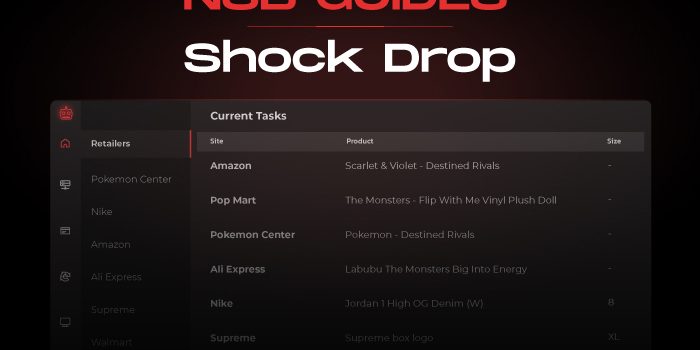
Shock Drop mode is optional, it is highly recommended to run this mode for Leo or Dan shock drops (don’t use it for non-shock drops and FLOW items).
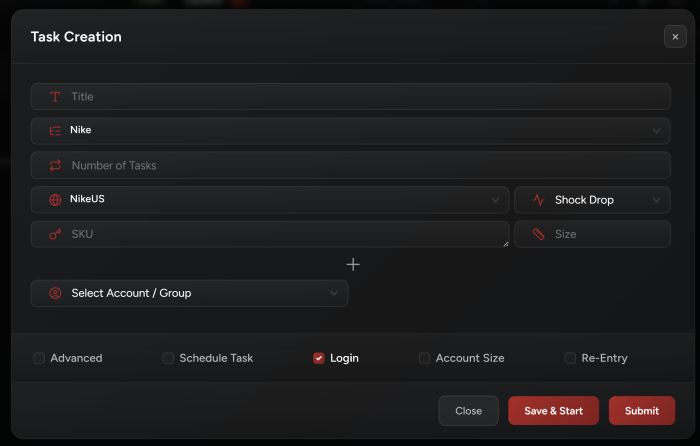

Shock Drop mode is optional, it is highly recommended to run this mode for Leo or Dan shock drops (don’t use it for non-shock drops and FLOW items).
Billings Tab:
Import your Nike profiles. You can create a Billing group to include all your profiles in.
Proxies Tab:
Create a proxy list for your Nike tasks.
Accounts Tab:
Create an accounts group and import your accounts. Make sure to assign a proxy list & billing profile or billing group to your account list.
Login to your accounts in the Accounts tab before creating your tasks.
Tasks Tab:
Then go to your Tasks tab to create your Nike tasks and make sure to enter the sneakers SKU in the Input field.
• For launches, the Login option should be selected.
• You can add any Advanced options, or Schedule your task to Start/Stop at any time, or choose the Re-Entry option if you want your tasks to reenter upon checkout failure.
• You can use Multi SKUs for Shock Drops.
Select Mode: Choose Shock Drop mode.
Select Size:
Enter one or multiple sizes, or keep the size field empty to select a random size.
Account Size option: Checking this allows you to select the saved preferred size on the account you are using. By doing so, the task will select a size based on your account size preference and not what you have entered in the task size field.
Settings Tab:
The module will use browsers.Set your browser limit from your Settings tab based on your hardware specs. You can choose a minimum of 1 browser up to 50 browsers (the default limit is 5).
Starting Your Task:
You can start your tasks like a Normal release, 1-2 hours before the expected drop time. The bot will pick a random item before drop time and then wait till the correct item has dropped.
Copped Tab:
Check your copped sneakers in this tab and share your success!