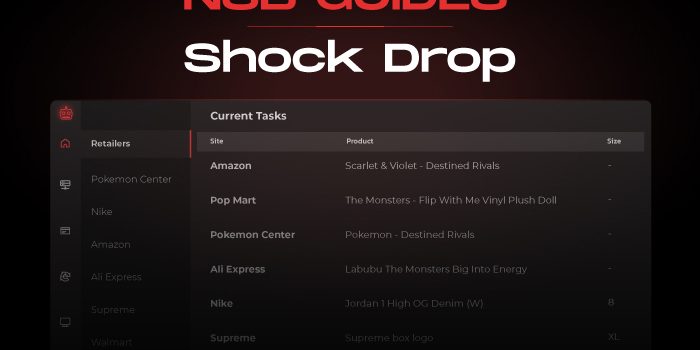
Shock Drop mode is optional, it is highly recommended to run this mode for Leo or Dan shock drops (don’t use it for non-shock drops and FLOW items).

Task Creation
-
Billings Tab:
Import your Nike profiles. You can create a Billing group to include all your profiles in.
-
Proxies Tab:
Create a proxy list for your Nike tasks.
-
Accounts Tab:
Create an accounts group and import your accounts. Make sure to assign a proxy list & billing profile or billing group to your account list.
Login to your accounts in the Accounts tab before creating your tasks.
-
Tasks Tab:
Then go to your Tasks tab to create your Nike tasks and make sure to enter the sneakers SKU in the
Inputfield.• For launches, the
Loginoption should be selected.• You can add any Advanced options, or Schedule your task to Start/Stop at any time, or choose the Re-Entry option if you want your tasks to reenter upon checkout failure.
• You can use Multi SKUs for Shock Drops.
-
Select Mode: Choose
Shock Dropmode. -
Select Size:
Enter one or multiple sizes, or keep the size field empty to select a random size.
Account Size option: Checking this allows you to select the saved preferred size on the account you are using. By doing so, the task will select a size based on your account size preference and not what you have entered in the task size field.
-
Settings Tab:
The module will use browsers.Set your browser limit from your Settings tab based on your hardware specs. You can choose a minimum of 1 browser up to 50 browsers (the default limit is 5).
-
Starting Your Task:
You can start your tasks like a Normal release, 1-2 hours before the expected drop time. The bot will pick a random item before drop time and then wait till the correct item has dropped.
-
Copped Tab:
Check your copped sneakers in this tab and share your success!