
Please read this page entirely before testing or using the bot on release day.
Test Instructions
Release Use Instructions
Access Log and Screenshots
Proxy Instructions
*****SneakerBot2.0 – Start the program 1-2 minutes prior to release time and continue to start URLs even after release time! If a URL is stuck on starting, stop it, and then start that URL again. Use both account and no account for each URL*****
After adding to cart, if the program stops or stalls for a longer than normal time YOU must double click the STATUS line for the link that is checking out. After double clicking this line the bots built in browser will take you to its current position where you can take over and complete checkout manually.
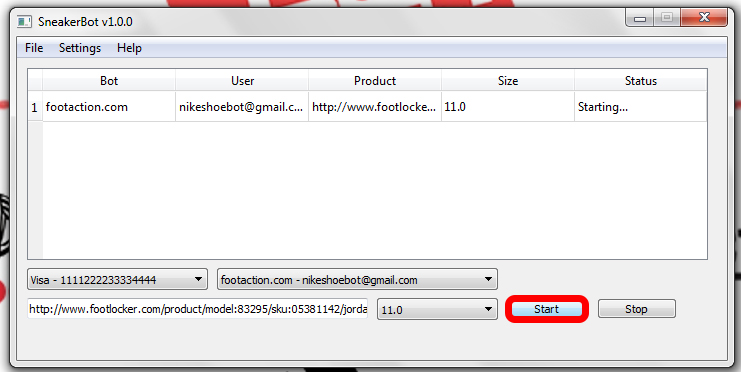
ATC, Retrying… Means the program is working correctly and attempting to add the shoe to cart. When you get to this point LET IT RUN!
1. Open the SneakerBot program.
PC
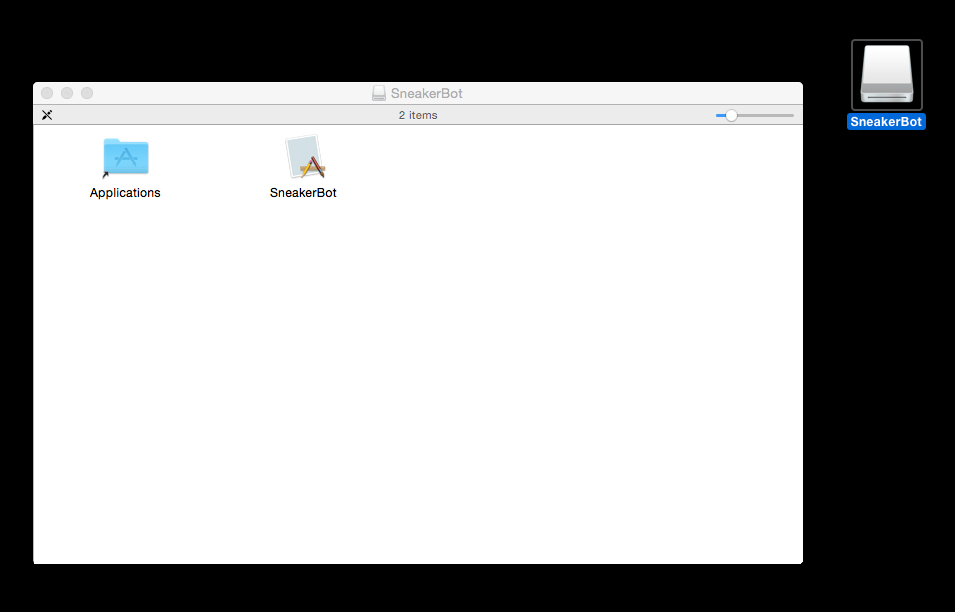
Mac
2. Make sure that “Enable Logging” is checked in the Settings. This will help us trouble shoot any issues you have at release time.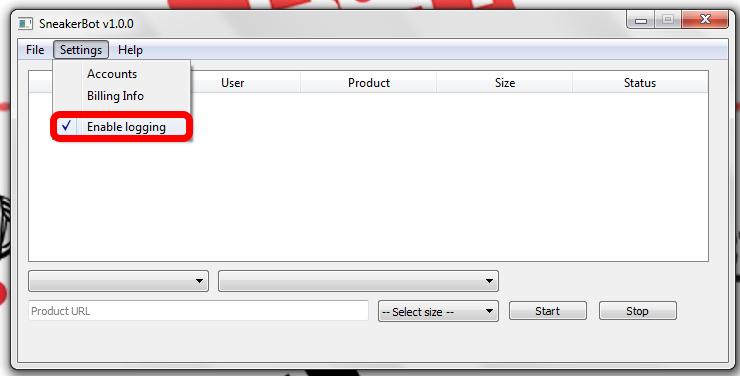 3. Add accounts. Select Accounts under the Setting menu.
If you’re running a Mac the settings menu is in the upper left hand portion of the screen. Click that and you’ll see options for billing and accounts.
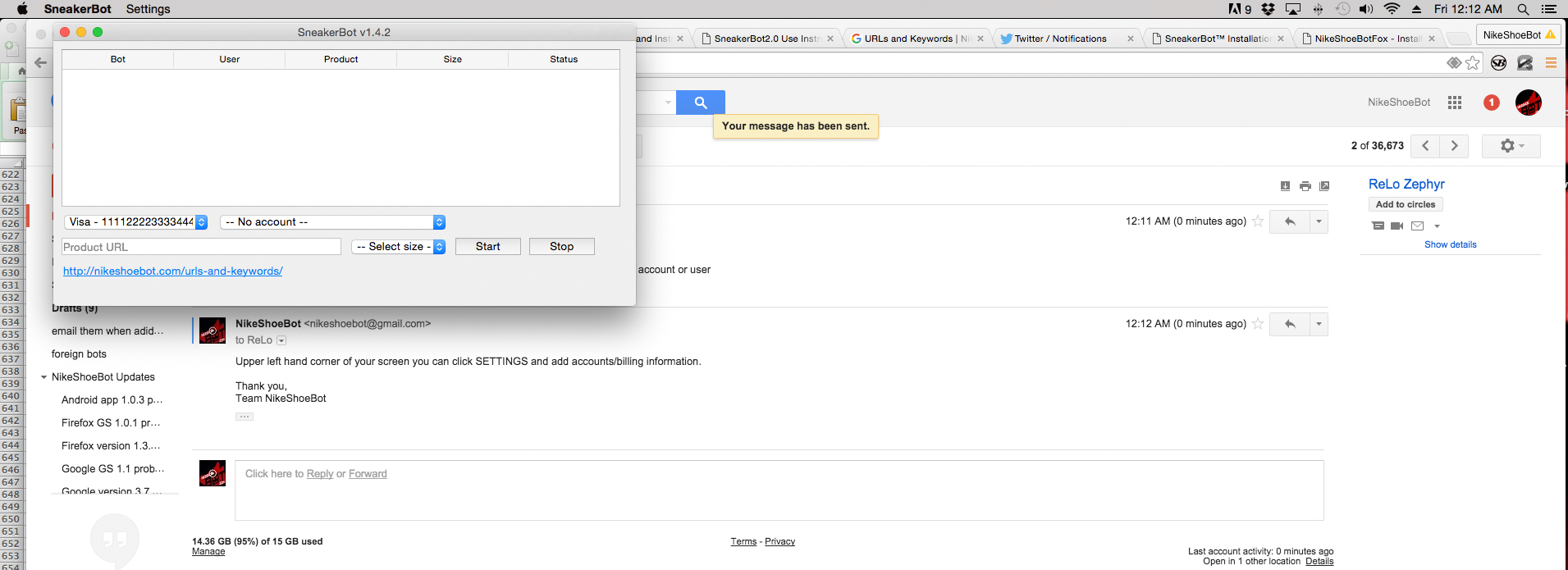
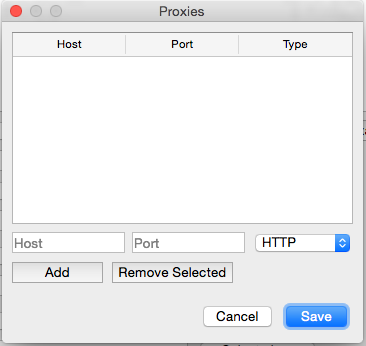
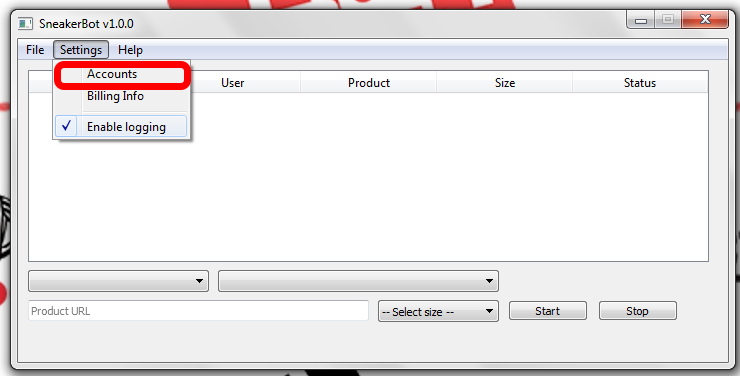 4. You must register accounts with each specific site on THEIR website prior to entering the account information here. Select the website from the store dropdown list, enter the account email address and password for that site then click ADD. Currently you can only add 1 account per website (This is only for the 1st beta version. The ability to add multiple accounts for each website will be added soon.) Select SAVE after you’ve added all of your accounts.
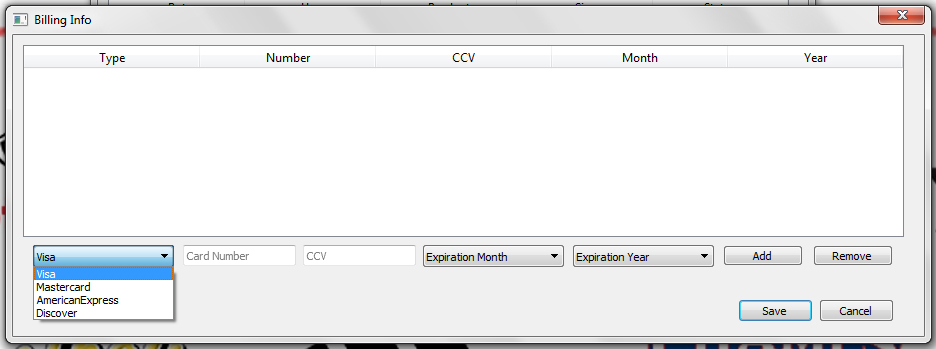
5. Select Billing Info from the Settings menu.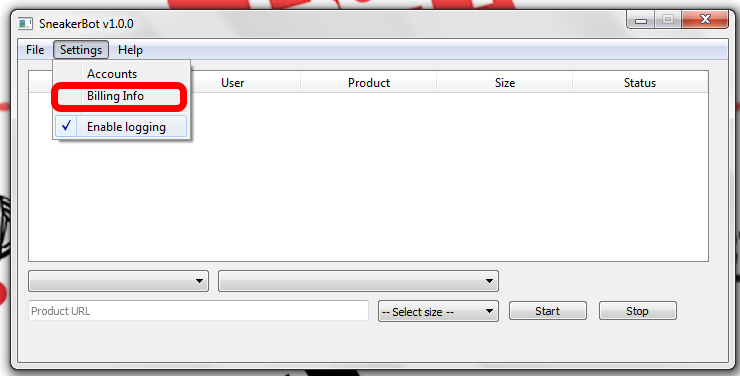 6. Enter your billing info for the TEST ACCOUNT. For testing purposes DO NOT enter your real credit card information. For testing purposes ENTER Visa, 1111222233334444, 123, 01/2016 and select ADD. Make sure you save your information.
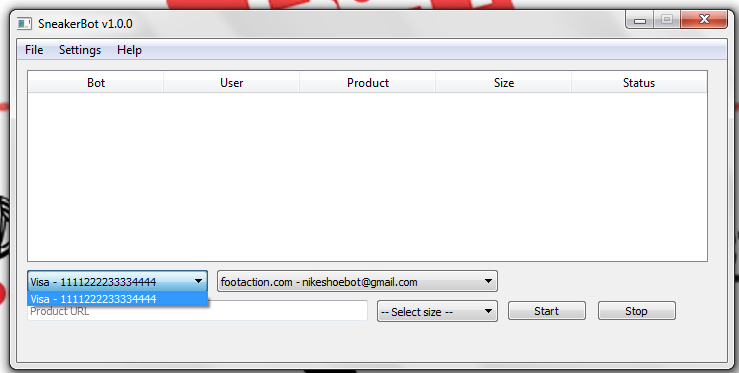
 7. Select the test credit card and website account you wish to use. If you select an active credit card the bot will auto checkout for you and you will have to request a refund directly from the website you used the bot on.
 8. Select your size and enter the link for any shoe that is currently available on the website you’re testing the program on.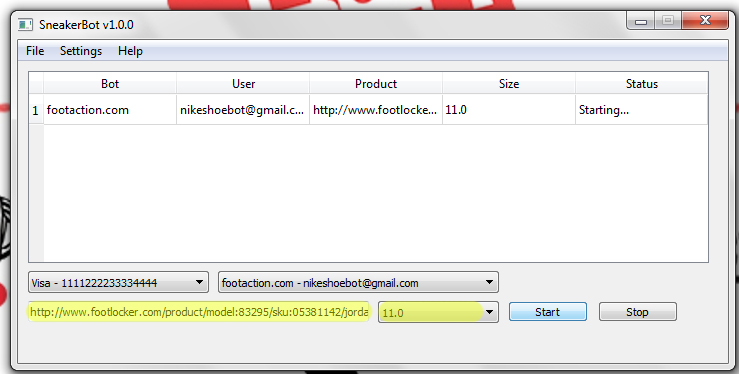
9. To start multiple URLs at the same time; Fill in additional URL, Account, Billing, and Size fields. The program will ignore any field groups that do not have information selected.
10. Press the start button 1-2 minutes prior to release time.
*****SneakerBot2.0 – Start the program 1-2 minutes prior to release time and continue to start URLs even after release time! If a URL is stuck on starting, stop it, and then start that URL again. Use both account and no account for each URL*****
You can view screenshots of the programing adding to cart here by navigating to the following folder on your computer (Your User should be replaced by your personal computer username) – C:\Users\<YOUR_USER>\AppData\Local\VirtualStore\Program Files (x86)\SneakerBot
You can also login into the website you used in your browser to see the shoe in your cart.
After adding to cart, if the program stops or stalls for a longer than normal time YOU must double click the STATUS line for the link that is checking out. After double clicking this line the bots built in browser will take you to its current position where you can take over and complete checkout manually.
EACH TIME AFTER TESTING CLEAR YOUR SHOPPING CART. IF YOU DO NOT CLEAR YOUR SHOPPING CART THE PROGRAM WILL CHECKOUT MULTIPLE PAIRS WHEN YOU USE IT ON RELEASE DAY.
BEFORE USING THE PROGRAM MAKE SURE YOUR SHOPPING CART IS CLEARED FOR EACH OF THE WEBSITES YOU’LL BE USING. IF YOUR CART IS NOT CLEARED THE PROGRAM WILL EITHER CHECKOUT OTHER PAIRS OR NOT CHECKOUT AT ALL BECAUSE PREVIOUSLY ADDED SHOES ARE NO LONGER AVAILABLE.
1. Open the SneakerBot program.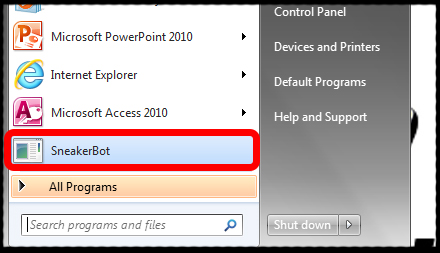
2. Make sure that “Enable Logging” is checked in the Settings. This will help us trouble shoot any issues you have at release time.3. Add accounts. Select Accounts under the Setting menu. 4. You must register accounts with each specific site on THEIR website prior to entering the account information here. Select the website from the store dropdown list, enter the account email address and password for that site then click ADD. Currently you can only add 1 account per website (This is only for the 1st beta version. The ability to add multiple accounts for each website will be added soon.) Select SAVE after you’ve added all of your accounts.
5. Select Billing Info from the Settings menu.6. Enter your billing info. Be sure to double check all of the information you enter. Select Add after entering your card information. Select SAVE after you’re finished adding your cards.7. Select the credit card and website account (see below for account information) you wish to use. (You can change these selections for each link)
8. Select your size and enter the link for the shoe you’re attempting to purchase. Product URLs are updated about 12 hours prior to release time here – https://www.nikeshoebot.com/urls-and-keywords/
9. To start multiple URLs at the same time; Fill in additional URL, Account, Billing, and Size fields. The program will ignore any field groups that do not have information selected.
10. Press the start button 1-2 minutes prior to release time.
*****SneakerBot2.0 – Start the program 1-2 minutes prior to release time and continue to start URLs even after release time! If a URL is stuck on starting, stop it, and then start that URL again. Use both account and no account for each URL*****
After adding to cart, if the program stops or stalls for a longer than normal time YOU must double click the STATUS line for the link that is checking out. After double clicking this line the bots built in browser will take you to its current position where you can take over and complete checkout manually.
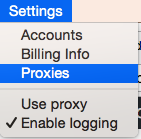
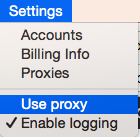
When the “Enable Logging” option is checked under settings the program will automatically keep a detailed log along with taking screenshots of the checkout process.
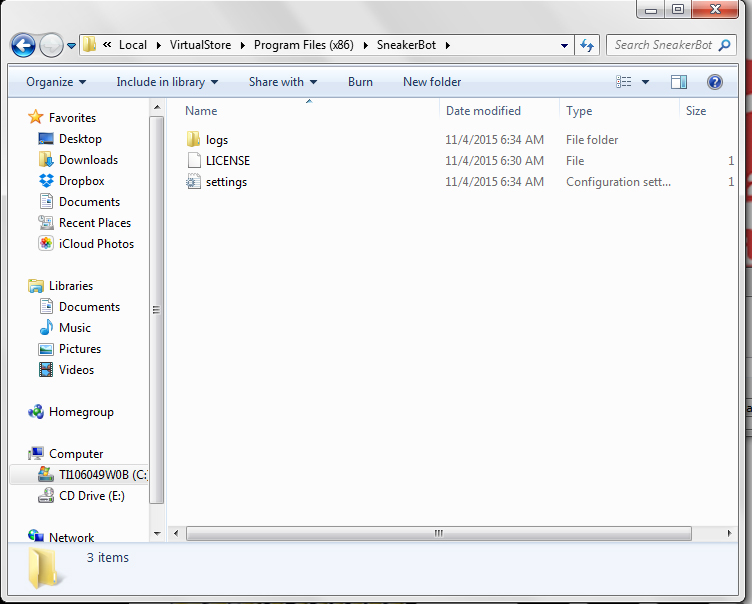
To access the log and screenshots you must navigate to this folder – C:\Users\<YOUR_USER>\AppData\Local\VirtualStore\Program Files (x86)\SneakerBot
Step by step instructions on locating this folder.
1. Open a folder and on the left side under Computer select the (C:) drive.
2. Click the Users folder.
3. Click the folder for the computer user your currently running.
4. Click AppData.
In order to view the AppData folder you will need to make sure View Hidden is checked.
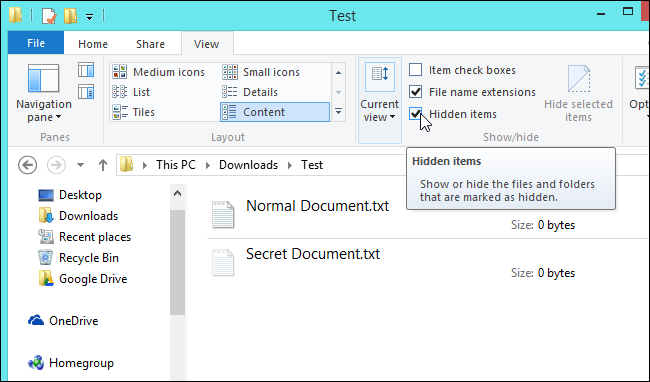
5. Click Local.
6. Click VirtualStore.
7. Click Program Files (x86).
8. Click SneakerBot.
9. Click Logs.
This folder contains logs and screenshots from each use. To locate the log and screenshots for the most recent use select files with the most recent date and time.
Sending us these files will help us troubleshoot any issues you have on release day.
Mac Log Instructions
To access the Log on your Mac do the following.